

WHOIS Chrome Plugin:Multi-Suffix Domain Research
Learn how to use the QName AI WHOIS Chrome plugin to check 13 domain suffixes, inspect registration evidence, and research without leaving a page.

A promising product name can appear anywhere: in a launch post, a competitor's homepage, a marketplace listing, or one sentence in a long research article. The slow part starts after you notice it. You copy the word, open a domain search tool, repeat the query across several suffixes, and then open more tabs for registration dates, registrar details, search results, and website history.
The QName AI WHOIS Chrome plugin compresses that research loop into the page you are already viewing. Click the extension to turn the current website into a keyword, or select a useful word and launch the same multi-suffix search from Chrome's context menu. The result stays in a side panel, so the source page remains visible while you compare domain options.
This guide explains how to install the extension, run both types of search, read the status list, inspect a domain, customize suffixes, and understand the session and privacy model.
What the WHOIS Chrome plugin does
The core job is intentionally narrow: one keyword, multiple suffixes. A single click checks the keyword against 13 default domain endings:
.com, .ai, .org, .net, .app, .io, .co, .im, .me, .pro,
.video, .photo, and .music.
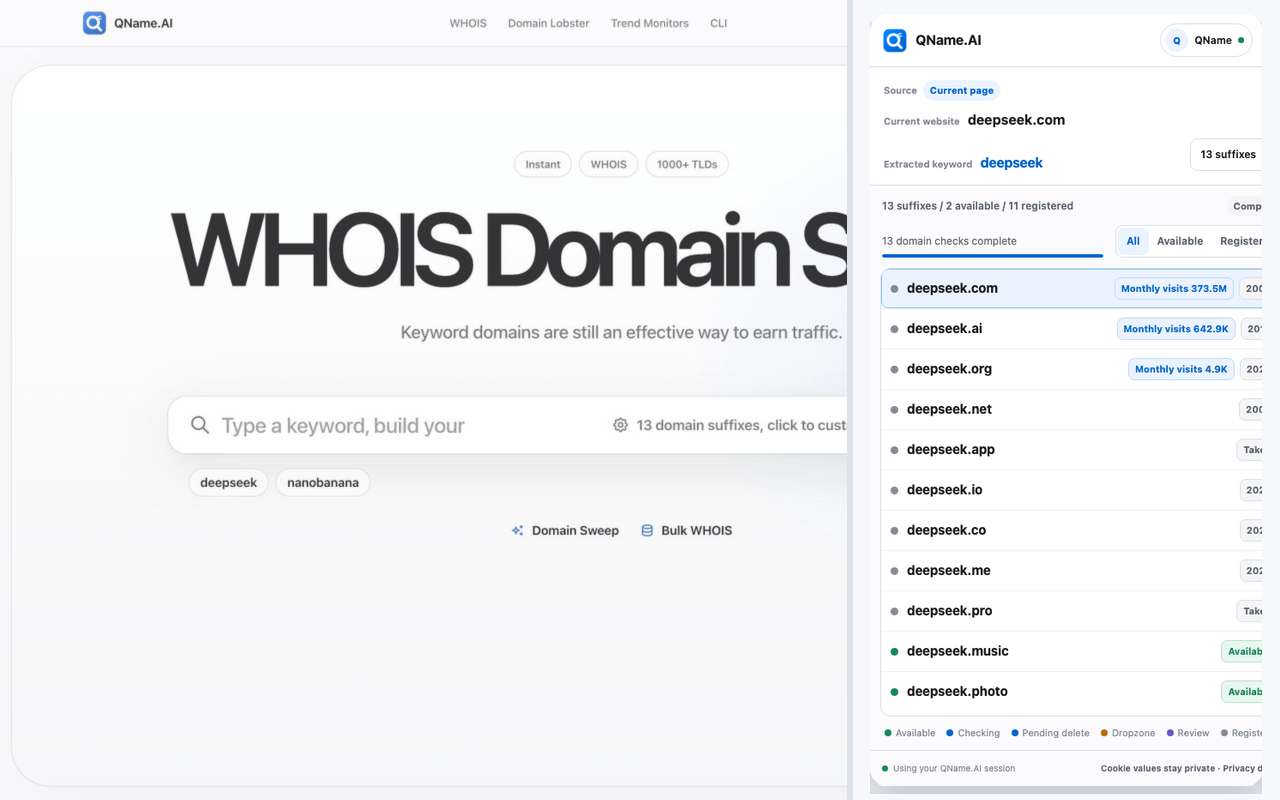
Results arrive progressively rather than waiting for the entire set. Each row shows the full domain and the strongest available signal, such as a creation year, monthly visits, “Available,” “Pending delete,” or a review state. You can filter the list to all results, available domains, or registered domains.
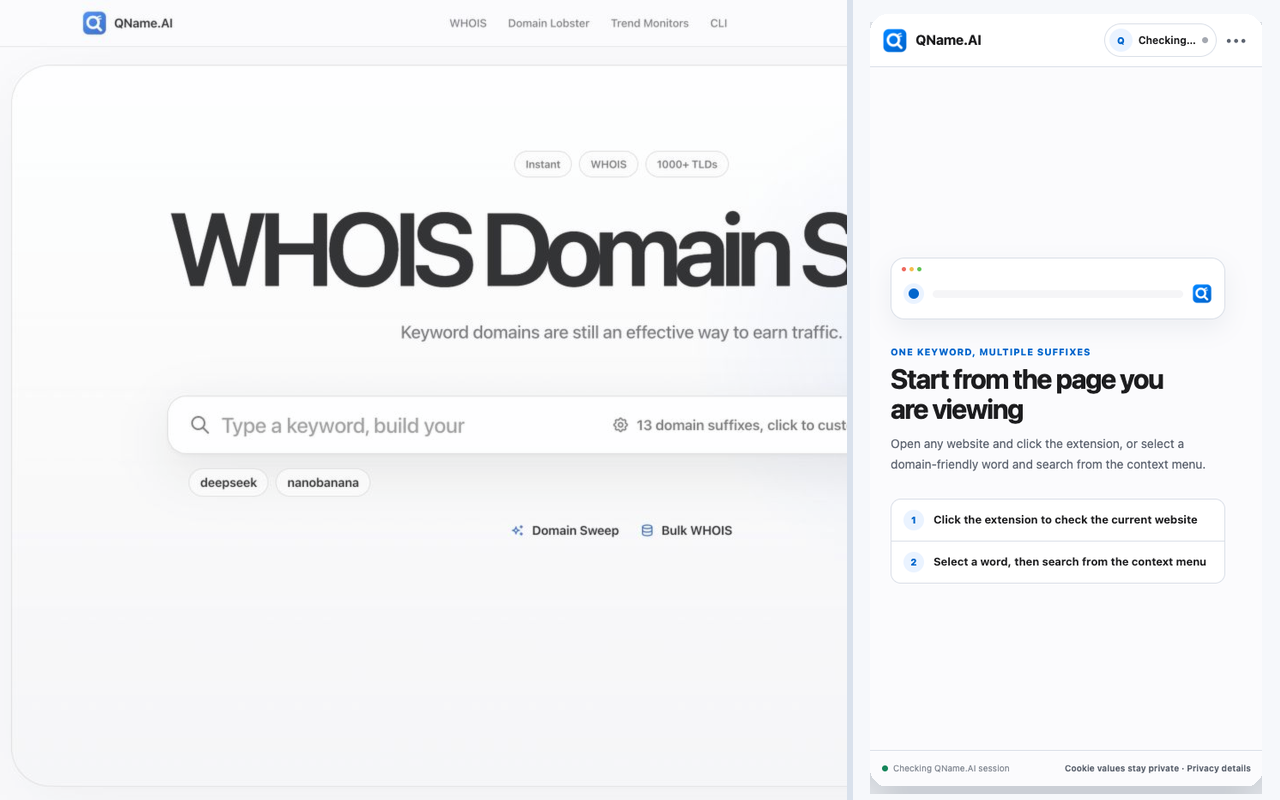
The WHOIS Chrome plugin does not run automatically every time you open a website. You decide when to start a lookup by clicking the extension icon or choosing the QName AI action after selecting text. That keeps browsing quiet and avoids background research you did not request.
Install the QName AI extension
Open the QName AI extension page in the Chrome Web Store, choose Add to Chrome, and confirm the permissions shown by Chrome. After installation, pin the QName AI icon if you expect to use it often:
- Open Chrome's Extensions menu.
- Find QName AI — Multi-Suffix WHOIS.
- Select the pin icon so QName AI remains visible in the toolbar.
The extension uses Chrome's side panel. Clicking its toolbar icon opens the panel beside the current tab instead of covering the page with a small popup. The wider, persistent layout is useful because domain evidence remains visible while you read, compare names, or move between links.
Sign in once, then reuse your QName AI session
No API key is required. If you are already signed in on qname.ai, the extension reuses that existing web session for its requests. If you are signed out, the panel provides a sign-in button. Complete authentication on QName AI, return to the tab, and ask the panel to check the session again.
This session design is different from copying a secret token into extension
settings. The extension does not request Chrome's cookies permission, does
not read or store cookie values, and does not store a password or API key. The
browser sends the existing QName AI session with requests to QName AI, just as
it does when you use the website directly.
The host access is limited to qname.ai and www.qname.ai. Other required
permissions support the current tab, context menu, side panel, and saved suffix
preferences. There is no broad all-sites host permission.
Method 1: check the website you are viewing
Use this method when the site's own brand or domain is the idea you want to
expand. For example, while viewing deepseek.com, click the QName AI icon.
The extension extracts deepseek as the keyword and starts checking the same
word across the configured suffixes.
The panel shows two pieces of source context before the results:
- Current website identifies the tab that started the lookup.
- Extracted keyword shows the normalized word used to build the domains.
Review the extracted keyword before acting on the results. On a normal root domain, the keyword is usually obvious. On hosted platforms or multi-part country suffixes, the extension attempts to identify the registrable project name rather than blindly using the first hostname segment.
Chrome internal pages, local development addresses, and raw IP addresses do not provide a valid public-domain keyword. Open a normal website or use the selected-text method instead.
Method 2: search a selected word from the context menu
The second workflow is designed for discovery. Select one domain-friendly word on any page, right-click it, and choose Check domain suffixes for “[word]” with QName AI. The side panel opens with “Selected text” as the source and runs the word across the same suffix set.
This is useful when a page's domain is not the idea. You may be reading a model release and notice a capability name, reviewing a marketplace and find a memorable product category, or studying a trend report that contains a new term. The context-menu action keeps the original source visible while you check whether the word has already spread across domain extensions.
The selected text should be a concise English word or domain-like phrase. QName AI normalizes simple spacing, but it rejects text that cannot form a safe domain label. If the panel reports that the selection is invalid, shorten it to the product word you actually want to research.
Read the multi-suffix result list
The summary at the top reports how many suffixes were checked, how many appear available, and how many are registered. A progress line shows when results are still arriving. The status colors and labels are evidence shortcuts, not purchase guarantees:
- Available means no registration record was found by the current check.
- Checking means QName AI is still collecting WHOIS evidence.
- Pending delete means the WHOIS record contains a deletion-state signal; the domain is still occupied and has not necessarily been released.
- Dropzone identifies a registry lifecycle or auction-related signal.
- Review means the result needs another check or registry-specific context.
- Registered means a current registration record was confirmed.
An “Available” result should still be confirmed with a registrar before you base a launch on it. Registries, premium inventory, reserved names, and rapid registration activity can change the final purchase outcome.
Pending-delete domains require even more care. A pendingDelete signal is not
the same as a domain being available today. Some suffixes have auction,
dropzone, grace-period, or registry-specific behavior. Treat the row as a
reason to investigate the lifecycle, not as permission to register the name.
Open a domain for evidence and SERP context
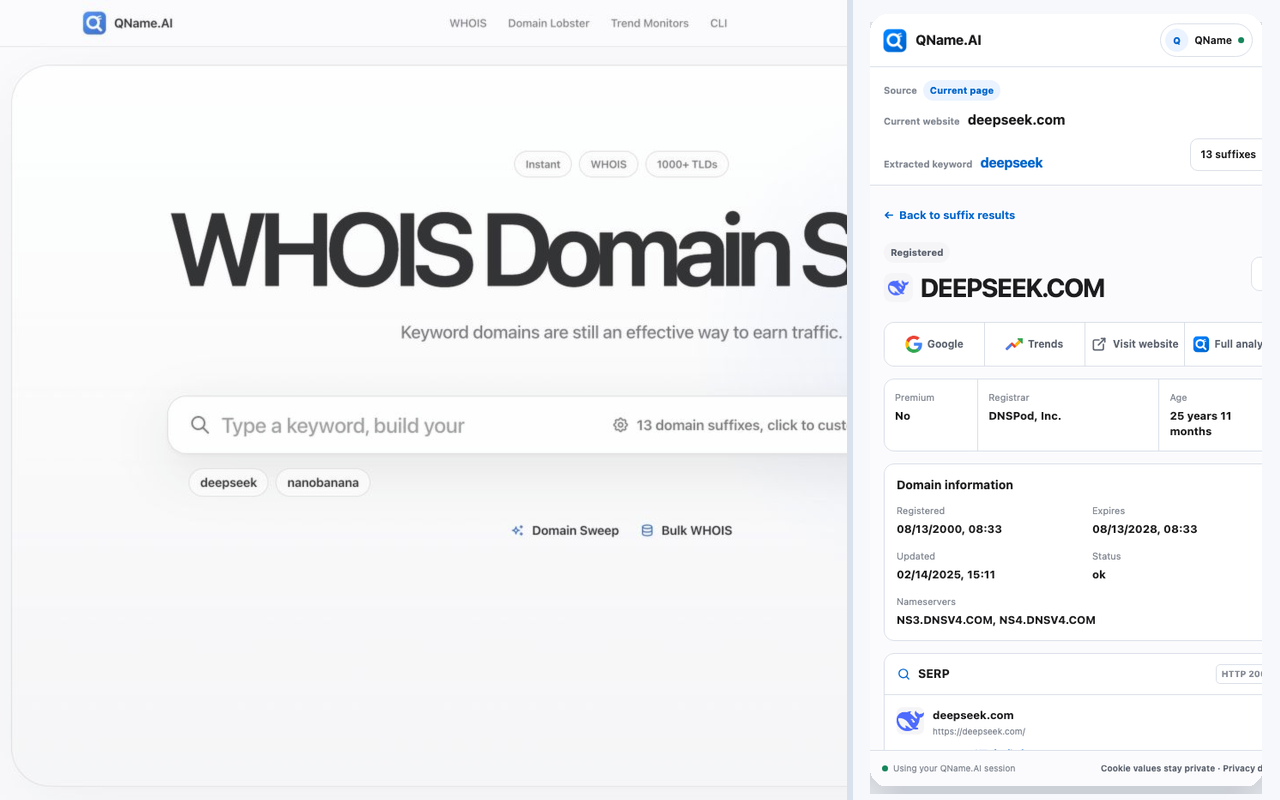
Select any registered row to open its detail view. The panel keeps the most useful facts compact:
- favicon and domain name
- premium indicator when known
- registrar
- domain age
- registration, expiration, and update dates
- registry status
- nameservers
- SERP preview when available
Quick actions use the original Google, Google Trends, visit-site, and QName AI icons. They open the broader research path only when you need it. Full analysis takes the domain to QName AI for the complete web experience, including deeper traffic and domain evidence supported by the site.
The SERP card is especially useful for separating a registered string from an active brand. A valid WHOIS record can tell you that a domain exists, while the favicon, title, description, URL, and HTTP status show whether a recognizable site is attached to it. SERP data is not available for every domain, so an empty preview should be treated as “no preview,” not proof that the domain has no website or search presence.
Customize the suffix set
The 13 defaults cover common product, company, creator, and AI-oriented
extensions, but they are not the right set for every market. Open the suffix
control beside the keyword to enable or disable defaults. You can also add a
valid custom suffix such as .shop or a compound suffix such as .co.uk.
Your selected suffix preferences are saved in extension storage. The next lookup uses the same set until you change it or reset the defaults. Keep the list focused: adding every possible TLD creates more noise and makes the best options harder to compare.
A practical domain-research routine
For product naming, competitor research, and new-term discovery, use this repeatable process:
- Keep the source page open and identify the exact word worth testing.
- Click the extension for the site's brand, or use selected text for an idea inside the page.
- Let all configured suffix checks finish before filtering.
- Save the genuinely available options first; they are the most time-sensitive.
- Open registered domains to compare age, registrar, nameservers, and SERP.
- Treat pending-delete and review states as research leads, not availability.
- Open Full analysis only for finalists that justify deeper investigation.
The value of a WHOIS Chrome plugin is not that it replaces every domain tool. It removes the repetitive first pass. You get a fast suffix map where the idea was discovered, then move only the strongest candidates into deeper analysis.
Language support and troubleshooting
QName AI follows Chrome's interface language and supports English, Simplified Chinese, Traditional Chinese, Arabic, German, Russian, French, Korean, Japanese, Spanish, and Italian. Restart the side panel after changing Chrome's language if the existing panel does not refresh immediately.
If a lookup does not start, check these points:
- Confirm that the tab contains a normal public website.
- Sign in to QName AI and use the session retry action.
- For selected text, reduce the selection to a domain-friendly word.
- If one result fails, retry after the WHOIS service recovers.
- If SERP is unavailable, use Visit website or Full analysis for the next step.
With those boundaries understood, QName AI — Multi-Suffix WHOIS turns a slow, tab-heavy naming task into a deliberate two-click workflow. Install the WHOIS Chrome plugin, keep the source visible, and investigate the domain ideas that are actually worth carrying forward.